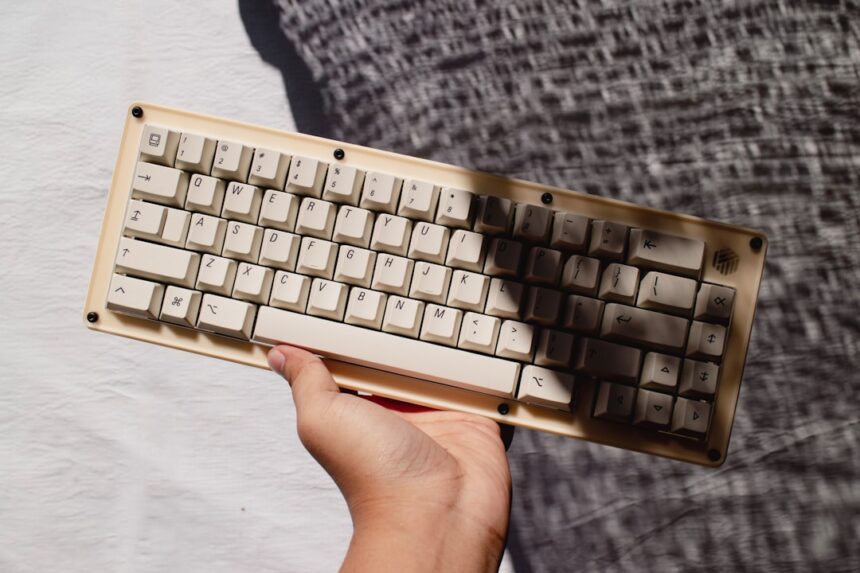
You’ve done it. You’ve finally pulled the trigger on that mechanical keyboard you’ve been eyeing. The satisfying click, the tactile bump, the sheer delight of typing on something that feels so… substantial. It’s an investment, not just in a peripheral, but in your daily interaction with your digital world. However, like any significant new tool, there’s a period of adjustment, an “acclimation tax” you pay as your muscle memory realigns and your expectations calibrate. This isn’t about the monetary cost, though that’s undeniable, but the mental and physical recalibration required to truly embrace your new typing companion.
The most immediate and noticeable difference, especially with a distinct switch type like clicky or tactile, is the physical feedback. Your fingers, so accustomed to the mushy embrace of membrane keys or the shallower throw of laptop chiclets, are suddenly confronted with a much more pronounced and deliberate actuation. This isn’t a flaw; it’s the core of the mechanical keyboard experience, but it requires conscious effort to adapt.
Understanding the Actuation Point
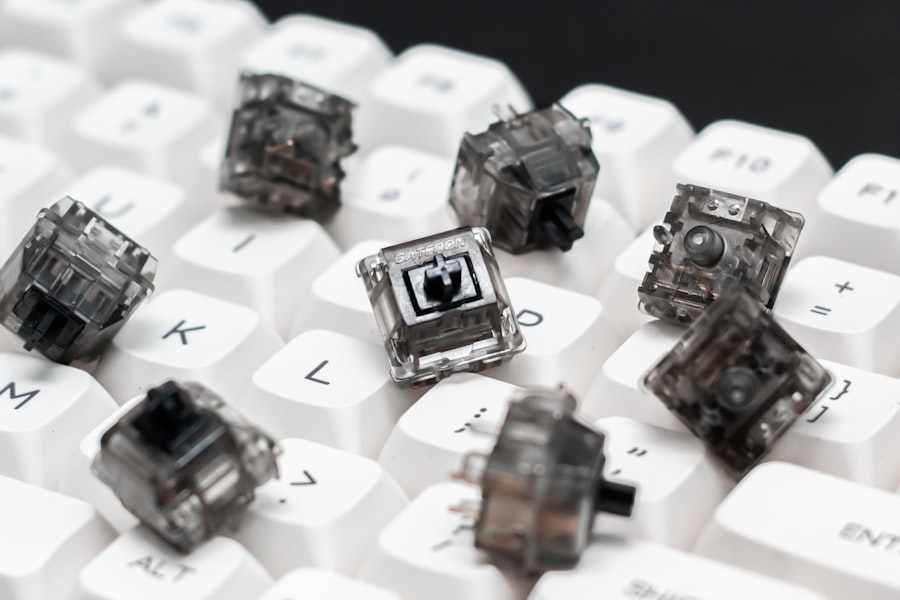
Different mechanical switches have varying actuation points – the exact moment a keypress registers. Some require a gentler touch, while others need a firmer, more decisive press. You might find yourself over-pressing initially, leading to typos as your fingers continue their downward journey after the key has already registered. This is where that “acclimation tax” begins to manifest. You’re not just moving your fingers; you’re learning to communicate with a new set of triggers.
The “Bottoming Out” Habit
A common initial struggle is the instinct to “bottom out” every keypress. This means pressing the key all the way down until it hits the base of the switch. While satisfying for some, it’s often unnecessary for actuation and can lead to fatigue and a less precise typing experience. Your fingers might feel like they’re constantly slamming into the keyboard. Learning to stop at or just before the actuation point is a key part of efficient mechanical typing. This will feel alien at first, like trying to stop a car just before the traffic light turns red when you’re used to flooring it.
The Case of the Accidental Presses
With tactile and especially linear switches, you might also find yourself accidentally registering presses. This can happen through resting your fingers too heavily on the keys or brushing against them while typing. The sensitivity that you’ve paid for, the very thing that makes these keyboards appealing, can become a source of frustration as you inadvertently trigger actions you didn’t intend. This requires a conscious effort to lighten your resting finger pressure and to be more deliberate with your finger placement between keystrokes.
Finding Your Sweet Spot: Experimentation is Key
There’s no universal “right” way to type on a mechanical keyboard. The beauty lies in its versatility. However, finding your personal “sweet spot” with actuation and finger pressure will significantly reduce your acclimation time. This might involve trying out different typing techniques.
The “Floating” Finger Technique
Some experienced mechanical keyboard users advocate for a “floating” finger technique. Instead of resting your fingers on the keys, you keep them hovering just above, only bringing them down to press when you intend to. This can feel unnatural and even clumsy at first, but it significantly reduces accidental presses and can lead to faster, more deliberate typing. It’s a conscious counter-measure to the muscle memory that tells your fingers to rest where they are.
The Impact of Keycap Profile
Beyond the switches themselves, the shape and profile of the keycaps play a surprisingly large role. Different profiles (like Cherry, OEM, SA, DSA) have varying heights and sculpts. You might find that the profile of your new keyboard, while aesthetically pleasing, requires a different finger angle or reach than you’re accustomed to. This can contribute to a feeling of awkwardness and necessitate a subtle adjustment in your hand posture.
If you’re interested in understanding the acclimation tax associated with new mechanical keyboards, you might find the article on Productive Patty particularly insightful. It delves into the nuances of how users can adapt to the unique feel and sound of mechanical switches, as well as the potential costs involved in upgrading. For more information, you can read the article here: Productive Patty’s Guide to Mechanical Keyboards.
The Soundscape Adjustment: From Silence to Symphony (or Cacophony)
Unless you opted for silent switches, your new mechanical keyboard will likely be louder than your previous one. This isn’t just a minor inconvenience; it’s an auditory cue that your brain needs to process. The satisfying click or thock becomes a constant companion, and for some, it can be a significant distraction or an annoyance.
The Clicky Conundrum
If you’ve chosen clicky switches (like Cherry MX Blues or their equivalents), the audible click is the defining characteristic. It provides definitive feedback, confirming each keystroke with a crisp sound. While many find this immensely satisfying, it can be overwhelming in shared workspaces or quiet environments. You might find yourself consciously trying to type softer, which can be a conflicting behavior.
The “Quiet” Click
Interestingly, even with clicky switches, there’s a degree of control you can exert. Learning to type with less force can subtly dampen the click, transforming it from a sharp report to a softer chime. This is an advanced technique that requires a lot of practice and the development of a very delicate touch, effectively fighting against the very nature of the switch itself.
The Thock and the Rumble
Tactile and linear switches, while generally quieter than clicky ones, still produce a distinct sound. Tactile switches offer a bump and a resulting sound upon actuation, while linear switches produce a softer thock as the keycap bottoms out. You might find that the consistent sound, even if muted, becomes a background noise you need to tune out.
The Environmental Impact
Your new keyboard’s soundscape can have a significant impact on your environment. If you’re in a home office, your family might notice the increased noise. In a shared office, you might become acutely aware of your typing sounds and worry about disturbing colleagues. This necessitates an adjustment not just in your typing, but in your awareness of your surroundings and the social implications of your new peripheral.
The Layout and Ergonomic Reckoning: A New Mapping of Your Realm
Beyond the feel and sound, the physical layout of your mechanical keyboard can also present a challenge. Whether it’s a standard full-size board with an unfamiliar key placement, or a more compact layout like a 60% or TKL, you’re essentially learning to navigate a new map.
The Compact Conundrum: Function Layer Fluency
Many mechanical keyboard enthusiasts gravitate towards smaller form factors (like 60%, 65%, or TKL – Tenkeyless) for their desk real estate efficiency and aesthetic appeal. However, this often means that essential keys like dedicated arrow keys, function row, or even the delete key are moved to a “function layer.” This means you have to press a modifier key (like Fn) in combination with another key to access these functions.
Mastering the Fn Key
Learning to press the Fn key and the corresponding key simultaneously becomes a new fundamental skill. Initially, you’ll find yourself fumbling, looking for the relocated keys, and making errors as you try to access shortcuts or essential functions. This is a prime example of the acclimation tax – the frustration and increased error rate while your brain re-wires the spatial relationships of your typical commands.
Custom Keybindings and Layers
The beauty of mechanical keyboards, especially programmable ones, is the ability to customize keybindings and create multiple layers. While this offers immense power and customization, it also adds to the learning curve. You might initially set up custom layers for specific applications, but then find yourself forgetting which layer you’re on or which key combination performs a certain action. This requires a conscious effort to internalize your custom layouts.
The Ergonomic Equation: Hand and Wrist Placement
The physical dimensions and keycap profiles of your mechanical keyboard can also influence your hand and wrist posture. While some mechanical keyboards are designed with ergonomics in mind, others prioritize aesthetics or customizability. You might find that the angle of your wrists, the reach to certain keys, or the overall comfort differs significantly from your previous setup.
The Importance of Wrist Rests
If you’re experiencing wrist strain, a wrist rest can be an invaluable addition. However, even with a wrist rest, you might need to adjust your typing height or the angle of your keyboard to find a truly comfortable and sustainable position. This is an ongoing process of experimentation and refinement.
The “Ghosting” and “Key Rollover” Myth vs. Reality
Some discussions around mechanical keyboards mention “ghosting” (unregistered keypresses when multiple keys are pressed simultaneously) and “key rollover” (the number of keys that can be registered at once). While true ghosting is rare on modern mechanical keyboards, understanding key rollover can be important for gamers or those who type very rapidly with complex combinations of keys. For most users, this is a less significant part of the acclimation tax, but it can add to the feeling of needing to understand the “under the hood” workings of your new device.
The Software and Customization Frontier: Unlocking Potential, Facing Complexity
A significant part of the mechanical keyboard ecosystem lies in its software and customization options. This is where you move beyond just typing and into tuning your peripheral to your exact preferences. However, this power comes with its own set of learning curves.
Firmware and Drivers: The Foundation
Many mechanical keyboards, especially enthusiast-grade ones, rely on custom firmware (like QMK or VIA) for their advanced features. Understanding how to flash firmware, navigate its configuration options, and ensure your drivers are up to date can be a daunting task for those new to the hobby.
Flashing Firmware: A Delicate Dance
The process of “flashing” new firmware onto your keyboard’s microcontroller can be somewhat intimidating. It usually involves downloading firmware files, using specific software to upload them, and ensuring a stable connection. A mistake during this process could, in theory, render your keyboard temporarily inoperable. This risk, however small, contributes to the mental hurdle of engaging with deep customization.
Navigating Configuration Tools
Once your keyboard is running custom firmware, you’ll likely use a graphical configuration tool (like VIA or the manufacturer’s specific software) to remap keys, create macros, and set up lighting effects. These tools can range from intuitive to labyrinthine, requiring you to spend time understanding their interfaces and functionalities. Your initial attempts to rebind a key or create a simple macro might feel like deciphering a foreign coding language.
Macros and Layers: More Than Just Shortcuts
Macros, sequences of keystrokes or mouse actions that can be triggered by a single keypress, and the aforementioned layers, offer immense productivity gains. However, their creation and effective use require careful planning and understanding.
The Macro Maze
Creating a useful macro involves not just recording the sequence but also understanding timing, modifiers, and potential conflicts. You might create a macro that’s too fast, too slow, or interacts poorly with your operating system or applications, leading to unexpected results. This necessitates iterative refinement and a systematic approach to macro creation.
Layer Management: A Cognitive Load
As you build out multiple layers for different tasks, the cognitive load of remembering which layer you’re on and what functions are available can become significant. This is where developing consistent mental models for your layers becomes crucial, otherwise, you’ll be constantly switching layers back and forth, negating the efficiency gains.
If you’re considering upgrading to a new mechanical keyboard, it’s essential to understand the acclimation tax that comes with it, as it can significantly affect your typing experience. For a deeper dive into this topic, you can explore a related article that discusses how different keyboard layouts and switch types can impact your productivity. This resource provides valuable insights into the nuances of mechanical keyboards and their acclimation process. To learn more, check out this informative article on Productive Patty.
The Psychological and Productivity Plateau: Embracing the Learning Curve
| Keyboard Model | Acclimation Period (in days) | Number of Users |
|---|---|---|
| Model A | 3 | 25 |
| Model B | 5 | 18 |
| Model C | 2 | 30 |
Ultimately, adjusting to your new mechanical keyboard is a psychological and productivity journey. The initial period is often a net decrease in typing speed and accuracy as you adapt. This is the acclimation tax in its purest form, a dip in performance that will eventually be overcome by mastery.
The Perceived Productivity Dip
It’s natural to feel less productive when you’re struggling to type at your usual speed. You might find yourself making more errors, taking longer to complete tasks, and feeling a general sense of frustration. This is a critical phase; resisting the urge to revert to your old, familiar keyboard is essential for reaping the long-term benefits.
Embracing the “Beginner’s Mindset”
The key to navigating this dip is to embrace a “beginner’s mindset.” Recognize that you are learning a new skill, and it’s okay to be slow and deliberate. Focus on one aspect of adjustment at a time – perhaps initially focusing on accurate key presses before trying to speed up.
The Long-Term Gains: Efficiency and Enjoyment
Once you’ve paid your acclimation tax, the rewards of mechanical keyboards can be substantial. Improved typing speed, increased accuracy, greater typing comfort, and the sheer enjoyment of the typing experience can significantly enhance your productivity and overall satisfaction with your computing setup. The initial struggle is a temporary barrier to entry for a more refined and enjoyable interaction with your digital tools.
The Satisfaction of Mastery
There’s a distinct satisfaction that comes from mastering a new skill, and typing on a mechanical keyboard is no exception. As your muscle memory adapts, your finger speed increases, and your error rate drops, you’ll begin to appreciate the subtle nuances of your chosen switches and layout. The once-foreign sensation becomes natural, and the keyboard feels like an extension of yourself.
The “Endgame” Mirage: Continuous Refinement
For many, the mechanical keyboard journey doesn’t end with a single purchase. The allure of different switches, keycaps, and layouts can lead to a perpetual exploration. While this can be a fun and rewarding hobby, it also means that the “acclimation tax” can be a recurring theme. Each new keyboard, each set of keycaps, can introduce a fresh set of adjustments. Understanding that this is part of the hobby, rather than a sign of an inadequate purchase, is crucial for long-term enjoyment.
In conclusion, adjusting to your new mechanical keyboard is a process, not an instant revelation. It requires patience, practice, and a willingness to embrace new sensations and workflows. The “acclimation tax” you pay in terms of initial frustration and reduced speed is an investment in a more comfortable, efficient, and enjoyable typing experience that can last for years to come.
FAQs
What is the acclimation tax of new mechanical keyboards?
The acclimation tax refers to the period of time it takes for a user to adjust to a new mechanical keyboard, including getting used to the key switches, layout, and overall feel of the keyboard.
How long does it typically take to acclimate to a new mechanical keyboard?
The time it takes to acclimate to a new mechanical keyboard can vary from person to person, but it generally takes a few days to a couple of weeks for most users to fully adjust to the new keyboard.
What are some common challenges during the acclimation period?
Common challenges during the acclimation period include adjusting to the different key switches, adapting to a new layout or key configuration, and getting used to the overall typing experience of the new keyboard.
Are there any tips for speeding up the acclimation process?
Some tips for speeding up the acclimation process include practicing typing regularly on the new keyboard, experimenting with different keycap sets or key switches, and giving yourself time to adjust without getting frustrated.
Can the acclimation tax be avoided when switching to a new mechanical keyboard?
While it may not be entirely avoidable, choosing a mechanical keyboard with key switches and features similar to your previous keyboard can help minimize the acclimation period. Additionally, practicing and using the new keyboard regularly can also help reduce the time it takes to adjust.