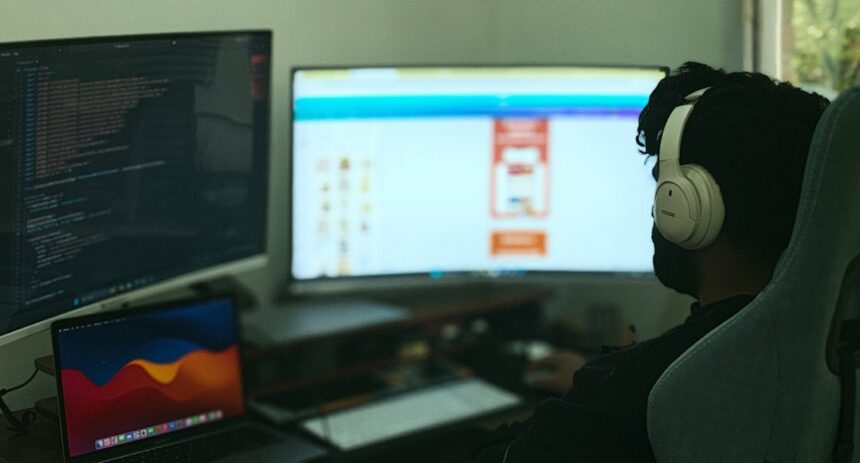
In today’s fast-paced digital world, the significance of an optimal monitor setup cannot be overstated. You may find that the way you arrange your monitors and the type of screens you use can greatly influence your productivity and overall comfort. An effective monitor setup allows you to work more efficiently, reducing eye strain and physical discomfort, which can lead to better focus and higher quality output.
When you invest time in creating a workspace that caters to your needs, you are essentially setting the stage for success. Moreover, an optimal monitor setup can enhance your workflow by allowing you to multitask seamlessly. Whether you are a graphic designer juggling multiple projects, a programmer debugging code, or a writer conducting research, having the right monitor configuration can make all the difference.
You may notice that with a well-thought-out arrangement, you can switch between tasks with ease, keeping your workflow uninterrupted. This not only saves time but also helps maintain your momentum throughout the day.
Key Takeaways
- An optimal monitor setup is crucial for productivity and comfort.
- Choose a monitor that suits your specific needs and tasks.
- Setting up multiple monitors can increase efficiency and multitasking capabilities.
- Adjust monitor settings for comfort and to maximize productivity.
- Utilize monitor accessories to enhance functionality and improve workflow.
Choosing the Right Monitor for Your Needs
Selecting the right monitor is a crucial step in establishing an effective workspace. You should consider factors such as screen size, resolution, and panel type based on your specific tasks. For instance, if you are involved in graphic design or video editing, a monitor with high resolution and accurate color reproduction is essential.
You might find that a 4K display provides the clarity and detail necessary for your work, allowing you to see every nuance in your projects. Additionally, think about the ergonomics of the monitor itself.
You may also want to explore monitors with features like blue light filters or flicker-free technology to minimize eye fatigue during long hours of work. By carefully evaluating your needs and preferences, you can choose a monitor that not only meets your professional requirements but also enhances your overall work experience.
Setting Up Multiple Monitors for Increased Efficiency
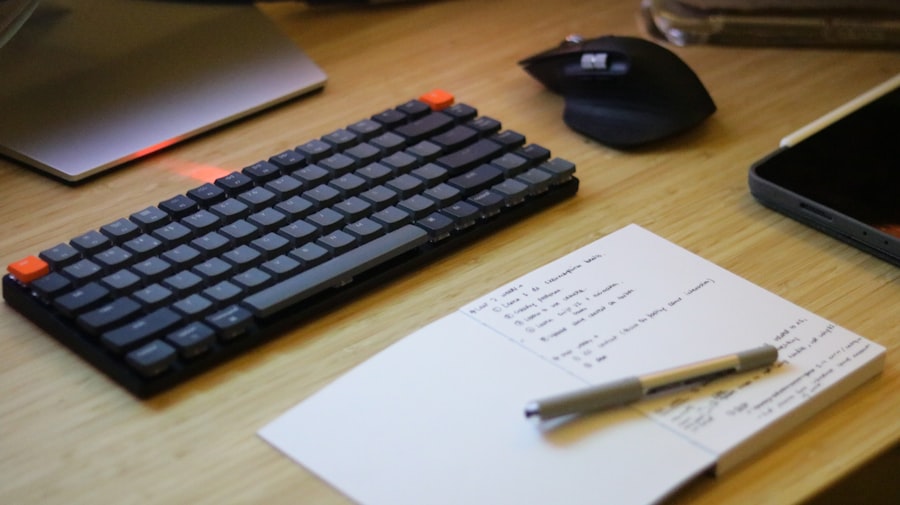
If you are looking to boost your productivity even further, consider setting up multiple monitors. This configuration allows you to expand your digital workspace significantly, enabling you to have several applications open simultaneously without the need to constantly switch between tabs. You might find that having one screen dedicated to communication tools while another is reserved for your primary work application can streamline your workflow and keep distractions at bay.
When arranging multiple monitors, pay attention to their placement and alignment. Ideally, the screens should be at eye level and positioned close enough that you can easily glance between them without straining your neck. You may also want to experiment with different orientations—some users prefer a landscape layout for all monitors, while others find that a vertical screen is beneficial for reading long documents or coding.
By customizing your multi-monitor setup to suit your preferences, you can create an environment that fosters efficiency and focus.
Adjusting Monitor Settings for Comfort and Productivity
| Monitor Setting | Effect |
|---|---|
| Brightness | Adjusting brightness can reduce eye strain and improve readability |
| Contrast | Optimizing contrast can enhance clarity and reduce eye fatigue |
| Color Temperature | Setting the right color temperature can reduce eye strain and improve color accuracy |
| Font Size and Type | Choosing a comfortable font size and type can improve readability and reduce eye strain |
Once you have chosen and set up your monitors, it’s essential to adjust their settings for optimal comfort and productivity. Start by calibrating the brightness and contrast levels to suit your environment; too bright or too dim can lead to eye strain over time. You might find that a brightness level that matches the ambient light in your workspace helps reduce glare and makes it easier to focus on your tasks.
Additionally, consider adjusting the color temperature of your monitors. Warmer tones can be easier on the eyes during extended periods of use, especially in low-light conditions. Many monitors come with preset modes for different activities—such as reading, gaming, or graphic design—that can help you quickly switch settings based on what you’re doing at any given moment.
By taking the time to fine-tune these settings, you can create a more comfortable viewing experience that enhances both your productivity and well-being.
Utilizing Monitor Accessories for Enhanced Functionality
To further enhance your monitor setup, consider investing in accessories that can improve functionality and comfort. Monitor stands or arms can help you achieve the perfect height and angle for your screens, promoting better posture and reducing strain on your neck and back. You may also want to explore cable management solutions to keep your workspace tidy and organized, preventing clutter from becoming a distraction.
Another valuable accessory is a screen filter or privacy screen, which can protect your eyes from harmful blue light while also keeping sensitive information secure from prying eyes. If you frequently work in shared spaces or public areas, this can be particularly beneficial. Additionally, consider using external speakers or headphones for better audio quality during video calls or while listening to music while working.
By incorporating these accessories into your setup, you can create a more functional and enjoyable workspace.
Organizing Your Workspace for Maximum Productivity
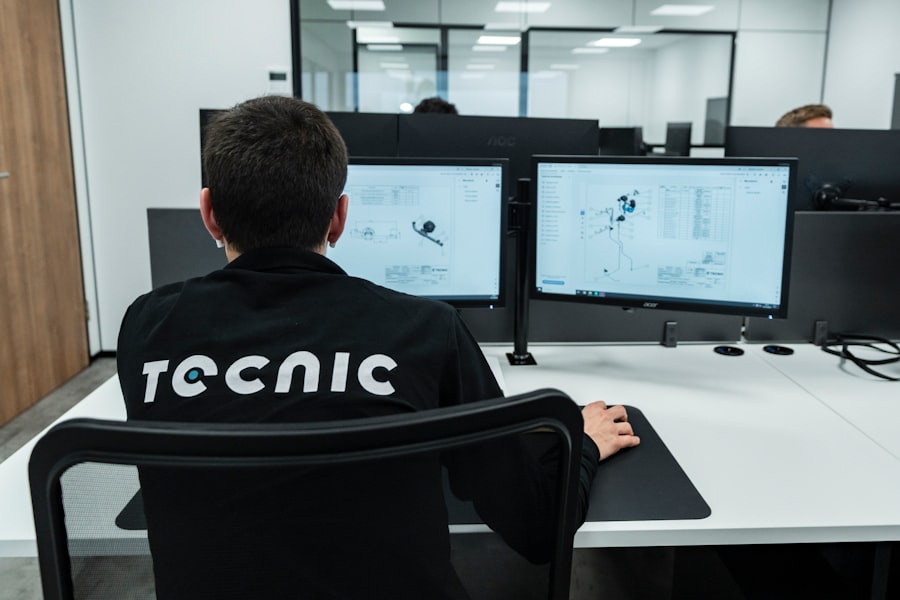
A well-organized workspace is key to maximizing productivity. You should take the time to declutter your desk and remove any items that do not serve a purpose in your daily tasks. A clean environment not only helps reduce distractions but also promotes a sense of calm and focus.
Consider implementing organizational tools such as drawer dividers or desktop organizers to keep essential items within reach while maintaining an orderly appearance. In addition to physical organization, think about how you arrange digital files on your computer. Creating a logical folder structure can save you time when searching for documents or resources.
You might find it helpful to use color-coded folders or labels to quickly identify different projects or categories of work. By establishing both physical and digital organization systems, you can create an environment that supports efficiency and allows you to concentrate on what truly matters.
Implementing Time Management Tools on Your Monitor Setup
Time management is crucial for maintaining productivity throughout the day. You may want to incorporate digital tools that help you track tasks and manage your time effectively right from your monitor setup. Applications like timers or task management software can serve as reminders for breaks or deadlines, ensuring that you stay on track without becoming overwhelmed.
Consider using techniques such as the Pomodoro Technique, which involves working in focused bursts followed by short breaks. You might find it helpful to set a timer on one of your monitors to keep yourself accountable during these intervals. Additionally, calendar applications can help you visualize your schedule and prioritize tasks effectively.
By integrating these time management tools into your monitor setup, you can cultivate a more structured approach to your workday.
Customizing Your Monitor Setup for Specific Tasks
Every task has its own unique requirements, and customizing your monitor setup accordingly can significantly enhance your efficiency. For instance, if you’re working on graphic design projects, you may want to adjust the color settings and layout of your monitors to ensure accurate color representation and ample screen real estate for design software. On the other hand, if you’re engaged in writing or research, having multiple documents open side by side can facilitate easier comparisons and note-taking.
You might also consider creating specific profiles for different tasks within your operating system or using software that allows you to switch between setups quickly. This way, when you transition from one type of work to another—say from coding to video editing—you can easily adjust settings like brightness, contrast, and even application layouts with minimal effort. By tailoring your monitor setup for specific tasks, you empower yourself to work more effectively and efficiently.
Integrating Ergonomic Solutions for Health and Well-being
Your health and well-being should always be a priority when setting up your workspace. Ergonomic solutions play a vital role in preventing discomfort and long-term health issues associated with prolonged computer use. You should invest in an ergonomic chair that supports good posture while working at your desk.
Additionally, consider using a standing desk or an adjustable desk converter that allows you to alternate between sitting and standing throughout the day. Monitor placement is also crucial for maintaining ergonomic health; screens should be positioned at eye level so that you don’t have to strain your neck or back while working. You might find it beneficial to use anti-glare screens or filters that reduce eye strain during long hours of use.
By integrating these ergonomic solutions into your monitor setup, you create a healthier work environment that promotes both comfort and productivity.
Troubleshooting Common Monitor Setup Issues
Even with the best intentions, issues may arise with your monitor setup from time to time. Common problems include connectivity issues, display resolution discrepancies, or even flickering screens. When faced with these challenges, it’s important not to panic; most issues have straightforward solutions that can be resolved with some troubleshooting.
Start by checking all connections—ensure cables are securely plugged in and not damaged. If you’re experiencing resolution issues, navigate to your display settings on your computer to adjust them accordingly. In cases of flickering screens, it may be worth updating graphics drivers or checking for interference from other electronic devices nearby.
Staying Up-to-Date with the Latest Monitor Technology and Trends
The world of technology is ever-evolving, particularly when it comes to monitors and display technology. Staying informed about the latest trends can help you make informed decisions about upgrades or changes to your setup. You might want to follow tech blogs or subscribe to newsletters that focus on display technology advancements—this way, you’ll be aware of new features like higher refresh rates, improved color accuracy, or innovative designs that could enhance your workspace.
Additionally, attending tech expos or webinars can provide valuable insights into emerging technologies and how they might benefit your work processes. As new models are released regularly, keeping abreast of these developments ensures that you’re not only equipped with the best tools available but also prepared for future advancements that could further optimize your monitor setup. By staying informed about the latest trends in monitor technology, you position yourself at the forefront of productivity enhancements in your workspace.
For those looking to optimize their workspace for maximum efficiency, setting up the best productivity monitor is crucial. A well-organized monitor setup can significantly enhance your focus and workflow. If you’re interested in diving deeper into creating an ideal workspace, you might find this related article on