You’re staring at your screen. The vibrant hues of your desktop wallpaper, the colorful icons, the bright blue of a web browser tab – they all vie for your attention. It’s a visual cacophony, and if you’re honest, it’s probably a significant contributor to your scattered focus and dwindling productivity. You tell yourself you can multitask, that you can resist the siren song of distracting websites, but the reality is far less forgiving. Your brain, a marvel of evolutionary design, is hardwired to respond to visual stimuli. The brighter, the more saturated, the more appealing the distraction.
But what if you could subtly shift the balance, to create an environment that encourages sustained concentration rather than fleeting engagement? What if you could reduce the visual noise without sacrificing functionality? The answer, surprisingly straightforward and remarkably effective, lies in a simple adjustment: grayscale.
Turning your computer’s display to black and white might sound like a drastic, almost retrograde, step. You might picture a vintage film reel or a stark, minimalist design aesthetic. However, the impact on your productivity is far from purely aesthetic. It’s a psychological intervention, a deliberate act of stripping away the visual allure that often derails your workflow. By reducing the overwhelming spectrum of colors, you diminish the inherent attractiveness of non-essential elements on your screen, allowing the truly important information to take center stage.
This article will guide you through the process of embracing grayscale for enhanced focus. We’ll explore the underlying reasons why this simple change can be so potent, how to implement it across various operating systems, and the practical benefits you can expect. It’s not about making your digital world drab; it’s about making your work life more efficient and less fraught with the constant battle for your attention.
You likely spend a significant portion of your day interacting with screens. Whether it’s for work, communication, or leisure, these devices have become ubiquitous. While they offer unparalleled access to information and connectivity, they also present a constant barrage of visual stimuli.
The Allure of Color
Color is a powerful tool. It’s used in marketing to grab your attention, in design to evoke emotions, and in everyday life to differentiate objects. This inherent appeal extends to your digital environment.
Color and Attention Magnets
Think about the websites you visit. Many of them use bright, saturated colors strategically. A vibrant red notification badge, a neon green call-to-action button, or a visually striking hero image are all designed to immediately draw your eye. These elements, while sometimes functional, often serve as subtle invitations to deviate from your current task. Your brain registers these flashes of color, and even if you consciously try to ignore them, they create a subconscious pull.
The Dopamine Loop of Digital Engagement
Furthermore, the colorful nature of digital content can tap into your brain’s reward system. Each new notification, each engaging image, each interactive element can trigger a small release of dopamine, making you feel momentarily rewarded. This creates a subtle but powerful loop that encourages more engagement, often at the expense of deeper, more sustained work. The brighter and more varied the colors, the more opportunities for these small dopamine hits, and the greater the temptation to break your focus.
The Cognitive Load of Visual Information
Beyond direct distractions, the sheer amount of visual information on your screen contributes to cognitive load. Your brain has to constantly process and filter this information, even if it’s not actively engaging with it.
Unnecessary Visual Processing
When your screen is filled with a spectrum of colors, your visual cortex is working overtime. It’s processing countless shades, hues, and contrasts. Even the background wallpaper, regardless of its artistic merit, is adding to this processing demand. This constant, low-level visual processing can subtly deplete your mental resources, making it harder to concentrate on cognitively demanding tasks.
Information Overload and Decision Fatigue
The abundance of colorful icons, application windows, and browser tabs can create a sense of information overload. Each element competes for your visual real estate, and implicitly, for your cognitive resources. Deciding which element is important enough to engage with, and which can be ignored, contributes to decision fatigue. Over time, this constant stream of minor decisions can wear down your ability to make more significant, task-oriented choices.
Grayscaling your desktop can significantly enhance your focus and productivity by reducing visual distractions and creating a more serene working environment. For a deeper understanding of the benefits of this technique, you can explore the article on Productive Patty that discusses various strategies to improve concentration and minimize distractions. Check it out here: Productive Patty.
Implementing Grayscale: A Practical Guide
Switching your display to grayscale is a surprisingly simple process, and the method varies slightly depending on your operating system. Once you understand how to do it, you can experiment with its effects on your workflow.
Grayscale on Windows
Windows offers built-in accessibility features that allow you to enable grayscale mode.
Using the Color Filters Setting
- Access Settings: Click the Start button and select the “Settings” cogwheel icon.
- Navigate to Accessibility: In the Settings window, click on “Accessibility.”
- Select Color Filters: On the left-hand menu, under “Vision,” click on “Color filters.”
- Enable Grayscale: Toggle the switch for “Color filters” to “On.” Then, under “Filter types,” select “Grayscale” from the dropdown menu.
You can also create a keyboard shortcut for easier toggling. Scroll down within the “Color filters” section and you’ll see an option to “Turn color filters on or off using a keyboard shortcut.” Enabling this will allow you to press Windows key + Ctrl + C to toggle grayscale on and off. This is a particularly useful feature for quickly switching back to color when needed, such as for editing photos or viewing specific color-coded information.
Exploring Other Color Filter Options
While grayscale is the primary focus, Windows also offers other color filters that can be useful for reducing visual clutter or aiding individuals with specific visual impairments. These include red-green, green-red, and blue-yellow filters. Experimenting with these might offer additional benefits, though for the specific goal of reducing general distraction, grayscale often proves most effective.
Grayscale on macOS
macOS also provides straightforward options for enabling grayscale.
Utilizing Display Preferences
- Open System Settings: Click the Apple menu in the top-left corner of your screen and select “System Settings.”
- Go to Accessibility: In the System Settings sidebar, scroll down and click on “Accessibility.”
- Select Display: Under the “Vision” section, click on “Display.”
- Enable Color Filters: Click on the “Color Filters” tab. Check the box next to “Use color filters.” From the “Filter type” dropdown menu, select “Grayscale.”
Similar to Windows, you can also set up a keyboard shortcut for faster toggling. Within the “Color Filters” section, you’ll find an option to customize keyboard shortcuts. You can assign a specific combination (e.g., Command + Option + G) to activate or deactivate the grayscale filter. This allows for immediate switching, proving invaluable when you need to see color for a specific task.
macOS Accessibility Shortcut
macOS also offers a centralized accessibility shortcut that can be configured to toggle grayscale.
- Go to Keyboard Shortcuts: In System Settings, navigate to “Keyboard” and then “Keyboard Shortcuts.”
- Select Accessibility: In the left-hand menu of the Keyboard Shortcuts window, click “Accessibility.”
- Enable Accessibility Shortcut: Check the box next to “Accessibility Shortcut.”
- Assign Grayscale: Click the dropdown menu next to “Accessibility Shortcut” and select “Color Filters.” Now, pressing the
Option + Command + Akey combination (or whatever you have set) will bring up a menu where you can easily select or deselect “Grayscale.” This provides a more flexible way to manage accessibility features beyond just grayscale.
Grayscale on Linux
The method for enabling grayscale on Linux distributions can vary depending on the desktop environment you are using (e.g., GNOME, KDE Plasma, XFCE). However, most environments offer some form of color adjustment.
GNOME Desktop Environment
For GNOME, you can often find accessibility settings that include color filters.
- Open Settings: Click on the system menu (usually in the top-right corner) and select “Settings.”
- Navigate to Accessibility: In the Settings window, find and click on “Accessibility.”
- Enable Color Filters: Under the “Vision” section, you should find an option for “Color Filters” or “Color Correction.” Enable it and select “Grayscale” from the available options.
Some GNOME extensions might also offer more granular control over color settings, including grayscale toggles.
KDE Plasma Desktop Environment
KDE Plasma often makes these adjustments available through its System Settings.
- Open System Settings: Click on the application launcher and search for “System Settings.”
- Navigate to Accessibility: Within System Settings, look for a section related to “Accessibility” or “Workspace Behavior.”
- Find Color Settings: Inside the Accessibility settings, you should find options for “Color” or “Color Correction,” where you can select a grayscale profile.
Command-Line Options (Advanced)
For more advanced users or specific Linux distributions, there might be command-line tools or configuration files that allow you to set display properties, including color depth and saturation. This approach is less user-friendly but offers maximum control. For instance, tools like xrandr can sometimes be used to manipulate display settings. However, relying on the desktop environment’s built-in accessibility features is generally the most straightforward and recommended approach for enabling grayscale.
The Psychological Impact of Monochrome

The shift to grayscale isn’t just a technological tweak; it has a demonstrable psychological effect on how you perceive and interact with your digital environment.
Reducing Visual Stimulation and Enhancing Focus
By removing color, you effectively dial down the visual “noise” of your interface. This has a direct impact on your cognitive processing.
Diminishing Distraction Triggers
Colors are powerful attention grabbers. A bright, saturated icon, a colorful notification, or a vibrant website element can all act as micro-distractions. When you remove these, you create a less visually stimulating environment. This doesn’t mean your screen becomes boring; it means the elements that are truly intended to hold your attention—the text you’re reading, the code you’re writing, the document you’re editing—become more prominent. The absence of color makes these essential components stand out more clearly against a less visually competing background.
Creating a Calm, Focused Atmosphere
Imagine walking into a room painted in vibrant, clashing colors versus a room painted in muted, neutral tones. The latter generally promotes a sense of calm and allows for easier concentration. The same principle applies to your digital workspace. A grayscale display can foster a more tranquil and less stimulating cognitive environment, making it easier for you to settle into deep work and maintain focus for longer periods. It removes the subtle urge to click on something bright and flashy because everything is rendered in a more subdued, uniform palette.
Shifting Your Relationship with Digital Content
When your screen is in grayscale, your perception of digital content subtly changes. This alteration can lead to a more deliberate and less impulsive interaction with your computer.
Prioritizing Content Over Aesthetics
In full color, the aesthetic appeal of websites and applications can sometimes overshadow their functional purpose. A beautifully designed interface can be so visually engaging that it pulls you away from the information it houses. In grayscale, this aesthetic allure is significantly diminished. You are more likely to focus on the words, the data, and the underlying structure of the content, rather than being captivated by its visual presentation. This encourages a more critical and content-driven approach to your digital interactions.
Encouraging Deliberate Task Engagement
When distractions are less visually appealing, you are less likely to be pulled into them impulsively. This can lead to more deliberate choices about what you engage with on your screen. Instead of mindlessly clicking on a brightly colored link, you might pause and consider whether it’s truly relevant to your task. This increased mindfulness can lead to more purposeful browsing and a greater ability to stay on track with your intended activities. The grayscale environment fosters a user who is more in control of their digital consumption, rather than being passively swept along by it.
Practical Benefits in Your Workflow
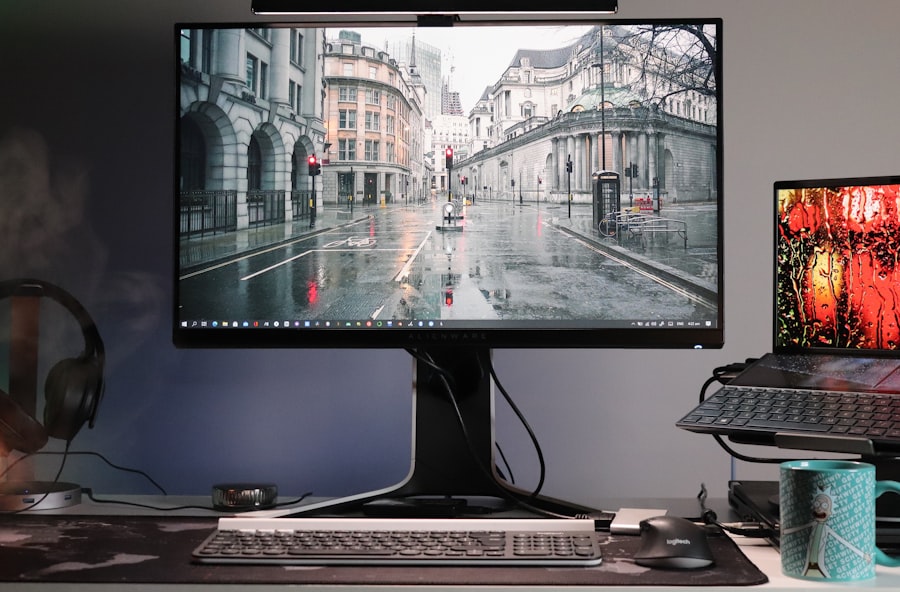
Beyond the immediate psychological shift, embracing grayscale can translate into tangible improvements in your productivity and overall work experience.
Improved Concentration and Reduced Eye Strain
The reduction in visual stimulation can have a direct impact on your ability to concentrate and can also alleviate certain types of physical discomfort.
Sustained Focus on Tasks
By minimizing the visual clutter and the inherent attractiveness of distractions, you create an environment conducive to sustained focus. You find yourself less prone to interrupting your workflow for a quick browse of social media or an engaging article. The absence of vibrant colors makes it easier to maintain your attention on the primary task at hand, leading to more efficient completion of your work. This is particularly beneficial for tasks that require prolonged periods of concentration, such as writing, coding, data analysis, or in-depth research.
Mitigating Digital Eye Strain
While color itself doesn’t directly cause eye strain, the constant flickering, high contrast, and bright lights associated with vibrant displays can contribute to visual fatigue. Rendering your screen in grayscale can reduce the overall intensity of the light emitted and create a less jarring visual experience. This can lead to a decrease in symptoms like dry eyes, headaches, and blurred vision that are often associated with prolonged computer use. It offers a subtler, more comfortable visual experience during long work sessions.
Enhanced Efficiency and Task Management
The subtle but persistent influence of grayscale can lead to better organization and more effective management of your time and tasks.
Prioritizing Information Hierarchy
In a grayscale environment, the visual hierarchy of information becomes more pronounced based on factors like font size, weight, and contrast. This naturally draws your attention to the most important elements on the screen. You are less likely to be drawn to visually “loud” but ultimately unimportant elements. This can help you quickly identify what needs your attention and what can be deferred, leading to more efficient decision-making and task prioritization. For instance, a bolded heading in monochrome is far more likely to capture your attention than an equally bolded heading on a brightly colored background when you’re context switching.
Streamlined Workflow and Reduced Interruptions
When your digital environment is less tempting, you are naturally less prone to interruptions. This leads to a more streamlined workflow. You spend less time getting sidetracked, and more time engaged in productive work. The ability to stay focused for longer stretches means you can often complete tasks more efficiently, reducing the need for context switching and the mental overhead that comes with it. It’s about creating a digital workspace that actively supports, rather than subtly hinders, your progress.
If you’re looking to enhance your focus while working on your computer, consider the benefits of grayscaling your desktop. This simple adjustment can reduce distractions and help you concentrate better on your tasks. For more insights on how to optimize your workspace for productivity, you can check out this informative article on Productive Patty, which offers various tips and strategies to create a more efficient work environment. By making small changes like this, you can significantly improve your ability to stay on task and boost your overall productivity.
Beyond the Desktop: Grayscale in Your Digital Life
| Reasons to Grayscale Your Desktop for Focus |
|---|
| Reduces visual distractions |
| Helps to maintain eye health |
| Increases productivity by minimizing colorful stimuli |
| Encourages better focus on tasks at hand |
| Reduces eye strain and fatigue |
While this article focuses on your desktop, the principles of grayscale can extend to other aspects of your digital life, further reinforcing focus.
Mobile Devices and Grayscale
Most smartphones and tablets offer grayscale modes that can be just as effective as on a desktop.
Smartphone Accessibility Settings
Smartphones, with their even smaller screens and constant notification streams, can be particularly susceptible to distraction. Activating grayscale on your phone can make apps and notifications less enticing, encouraging more intentional use. This can be especially helpful for limiting time spent on social media or games when you should be focusing on work-related tasks. Many operating systems allow for quick toggling, making it easy to switch back to color when needed for specific functions like photography or navigation.
Targeted App Grayscale
Some apps even offer their own internal grayscale modes, or you can use third-party tools to force certain applications into monochrome. This allows for a more nuanced approach, where you can selectively grayscale the most distracting applications while keeping others in full color. This offers a balance between reducing visual allure and maintaining functionality for apps that are critical to your workflow.
Web Browsing and Content Consumption
Even without system-wide grayscale, you can implement strategies to make your web browsing more focused.
Dedicated Focus Browsers
Consider using dedicated browsers or browser extensions designed for deep work. These tools often strip away visual clutter, block distracting websites, or offer minimalist interfaces that encourage focus. Some even have built-in grayscale toggles. This allows you to compartmentalize your browsing, dedicating specific browser instances to focused work while using your main browser for general use.
Browser Extensions for Content Simplification
Numerous browser extensions offer features like reader modes, distraction blockers, and customizable themes. Reader modes, in particular, often present web content in a clean, minimalist format, often with a grayscale option, removing ads and other visual distractions. These extensions can transform a busy webpage into a conducive environment for reading and absorbing information.
Conclusion: A Subtle Shift for Significant Impact
You’ve explored the visual distractions inherent in a colorful digital world. You’ve learned how to implement grayscale across your operating systems and even on your mobile devices. You’ve begun to understand the psychological underpinnings of this simple adjustment and the tangible benefits it can bring to your productivity.
Embracing grayscale isn’t about rejecting the beauty or utility of color. It’s a deliberate choice to curate your digital environment for optimal focus and sustained concentration. It’s about reclaiming your attention from the endless visual stimuli that compete for it, allowing you to engage more deeply with the tasks that truly matter.
Try it. Commit to a week in grayscale. Observe the subtle shifts in your focus, the reduction in impulsive clicks, and the increased sense of calm and control over your digital workspace. You might be surprised by how effectively this seemingly small change can unlock a more productive and less distracting digital life. It’s a powerful, yet unobtrusive, tool in your arsenal for achieving greater efficiency and a more focused workflow.
FAQs
1. What is grayscale and how does it affect focus?
Grayscale is a color scheme that uses various shades of gray, with no other colors. Grayscale can help improve focus by reducing visual distractions and making it easier for the eyes to concentrate on the task at hand.
2. How does grayscaling your desktop improve productivity?
Grayscaling your desktop can improve productivity by reducing the visual clutter and distractions caused by colorful icons and wallpapers. This can help you stay focused on your work and minimize the temptation to switch to non-work-related tasks.
3. Are there any scientific studies supporting the benefits of grayscaling for focus?
Yes, there are scientific studies that support the benefits of grayscaling for focus. Research has shown that reducing visual stimuli, such as by using grayscale, can help improve attention and concentration.
4. Can grayscaling your desktop have any negative effects on your eyes or mental health?
Grayscaling your desktop is generally considered to be safe and does not have any negative effects on your eyes or mental health. However, it’s important to take regular breaks and practice good ergonomics to prevent eye strain and other issues.
5. How can I grayscale my desktop?
You can grayscale your desktop by adjusting the display settings on your computer. On Windows, you can go to Settings > Personalization > Colors and select “Custom” under “Choose your color” and then choose a shade of gray. On Mac, you can go to System Preferences > Accessibility > Display and check the “Use grayscale” option.